
Service guide Life · World
In GIMP, a color profile explains the numbers before you change them
A researched export lesson distinguishes interpreting a color space from converting to another one.
Checking whether this browser can read the story aloud.
Explore related topics
Sources & editorial review
Sites editorial review recorded for this exact revision. This AI-assisted article or learning resource includes source links and credited contextual imagery.
This is a local editorial review, not a canonical Cultural Imprint Engine assessment. No CIE score is claimed. Source review does not verify third-party playback, provider availability or image pixels.
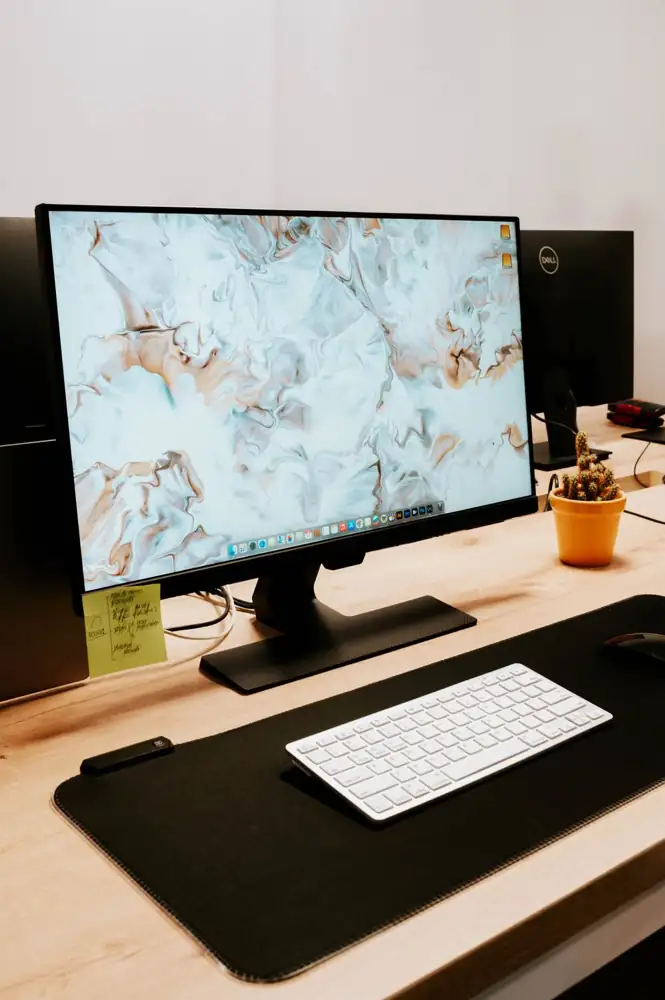
Photograph · source and license
The image, credit, reuse license, editorial context and delivered file are recorded in the exact Sites editorial review. This review is separate from the article’s canonical CIE assessment.
Image and publication standards →At a glance
- Assigning a profile and converting a profile have different purposes.
- A proof should use the intended receiving conditions.
In this story
Find the file’s starting point
A photograph can look dull in one program and bright in another even before anybody edits it. Color management describes how stored values relate to a color space and how a device presents them.
GIMP’s versioned documentation explains profiles for images and devices, along with soft proofing. This researched tutorial is for teen and adult creators preparing work for screens or print; allow an hour for a careful comparison.
Begin with a duplicate of a picture whose existing profile is known. Record its dimensions, profile and intended destination.
Resist adjusting saturation immediately. If one application interprets the stored numbers differently, changing the artwork may disguise the symptom while creating another error elsewhere.
The first useful question is what the file’s numbers mean in the current workflow.
Separate assignment from conversion
Assigning a profile tells software how to interpret the existing numbers. Converting between profiles changes the numbers to preserve the appearance as closely as that conversion allows.
Those are different operations. If a file’s profile is genuinely unknown, guessing a new assignment is not the same as discovering its origin.
Look for export notes or ask the creator before treating the guess as established.
Consider a hypothetical red with recorded channel values that were created in one RGB color space. Giving those same values a different interpretation can produce a different visible red.
A conversion instead uses the source and destination profiles to translate the values. This is a conceptual worked example, not a color measurement or a claim that any two monitors will display an exact match.
Choose the receiving conditions
For a screen delivery, follow the receiving service’s documented requirements and retain an appropriate embedded profile. GIMP’s PNG export page includes a color-profile choice.
For print, obtain the printer or print service’s requested workflow and profile rather than inventing a universal setting. Soft proofing can simulate a destination within the limits of the available profiles and display; it does not replace a physical proof when color accuracy matters.
Create a small test export with a neutral area, a saturated color and a shadow detail. Open it in a color-managed viewer and compare it with the working image under consistent viewing conditions.
Note what application you used and whether the profile is present. A phone in bright daylight and a desktop monitor in a dim room are poor grounds for diagnosing a precise color-space error by memory.
Keep a decision record
If the print service supplies a proof, compare that proof with the intended purpose. A photograph’s mood may tolerate a small shift that an identification chart cannot.
Describe the requirement in concrete language: “The two categories must remain distinguishable,” or “The dark texture should remain visible.” That turns vague dissatisfaction into a check the receiving team can understand.
Save the original, the editable revision and the chosen export separately, with a note about profiles and destination. Do not promise identical appearance on every screen.
This article draws on the GIMP manual and proposes a workflow; it does not report a calibrated-monitor test. A reliable process preserves the original interpretation, records any conversion and checks the actual output in the conditions that matter.
Include a small neutral reference area when your project permits it, and retain the test image with the delivery note. Comparing the same reference across exports is more informative than comparing different photographs whose lighting and content already differ.
Sources & verification
Official versioned manual retrieved 2026-10-03; profile interpretation and soft proofing documented. Some operating-system examples are dated; these are not repeated as current instructions.
Read the sourceOfficial versioned manual retrieved 2026-10-03; color profile, metadata, alpha and lossless compression choices documented. No exact page revision date.
Read the sourceThis article was written with AI assistance from the linked sources. No firsthand interview or visit is implied. Source dates and limits are identified in the reporting. Advertising does not determine editorial coverage. Request a correction or read our standards.
EVERY NEIGHBOR HAS A VOICE
Keep the conversation going.
Share experiences, ask questions and link evidence for factual claims. Automated publication checks apply to each submitted version. Comments are independent community discussion, not submissions to a government body.
Sign in to join · freeCommunity standards